

Updating the apps on a second - hand iPhone 8 is a crucial process that ensures your device runs smoothly, provides access to the latest features, and enhances security. As a supplier of second - hand iPhone 8 devices, I understand the importance of guiding users through this process to guarantee a seamless experience.
Pre - update Checks
Before you embark on the app update journey, there are several pre - update checks you should perform. First and foremost, ensure that your second - hand iPhone 8 has sufficient battery life. It is recommended to have at least 50% battery charge to avoid any interruptions during the update process. If your battery is low, connect your device to a power source using a reliable charger.
Next, check your device's storage space. App updates often require a certain amount of free space to be installed successfully. To check your storage, go to "Settings" > "General" > "iPhone Storage". If you find that your storage is running low, you can delete unnecessary apps, photos, or videos. You can also offload unused apps through the "Offload Unused Apps" option in the same menu.
Another important step is to connect your iPhone 8 to a stable Wi - Fi network. App updates can consume a significant amount of data, and using a cellular network may result in high data charges. Connecting to Wi - Fi ensures a faster and more reliable update process.
Finding Available Updates
Once you have completed the pre - update checks, it's time to find the available app updates. There are two primary ways to do this on your second - hand iPhone 8.
Method 1: Automatic Updates
Apple provides an option to enable automatic app updates. To set this up, go to "Settings" > "App Store". Under the "Automatic Downloads" section, toggle on the "App Updates" switch. When enabled, your iPhone 8 will automatically download and install app updates in the background when connected to Wi - Fi and charging. This is a convenient option as it ensures your apps are always up - to - date without any manual intervention.
Method 2: Manual Updates
If you prefer to update your apps manually, open the "App Store" on your iPhone 8. At the bottom of the screen, tap on your profile picture. On the next screen, you will see a list of apps with available updates. The number next to the "Updates" tab indicates how many apps have updates waiting.
Updating Individual Apps
To update an individual app, simply tap the "Update" button next to the app's name in the "Updates" section of the App Store. The app will start downloading, and once the download is complete, it will automatically install. You can also update multiple apps at once by tapping the "Update All" button at the top of the screen. This is a great time - saver if you have several apps that need updating.
Troubleshooting Update Issues
Sometimes, you may encounter issues while trying to update your apps on your second - hand iPhone 8. Here are some common problems and their solutions.
Update Stuck or Failing
If an app update is stuck or failing, try restarting your iPhone 8. Press and hold the side button and either volume button until the "Slide to Power Off" slider appears. Slide it to turn off your device, then press and hold the side button again to turn it back on. After restarting, try updating the app again.
Insufficient Storage
If you receive an error message indicating insufficient storage during an update, go back to the "iPhone Storage" settings and free up more space as described earlier. You may also need to close any unnecessary apps running in the background to create more available memory.
Wi - Fi Connection Issues
If the update process is slow or fails due to a Wi - Fi connection issue, try toggling the Wi - Fi switch off and on in the "Settings" app. You can also try forgetting the Wi - Fi network and reconnecting to it. If the problem persists, check if other devices can connect to the same Wi - Fi network. If not, there may be an issue with your router.
Benefits of Keeping Apps Updated
Keeping your apps updated on your second - hand iPhone 8 offers numerous benefits. Firstly, app updates often include bug fixes. Developers are constantly working to improve their apps, and these updates can resolve issues such as crashes, freezes, or glitches that you may be experiencing.
Secondly, updates provide access to new features. App developers are always adding new functionality to their apps, and by updating, you can take advantage of these enhancements. For example, a social media app may introduce new filters or privacy settings, while a productivity app may add new collaboration tools.
Finally, app updates are crucial for security. Cyber threats are constantly evolving, and developers release updates to patch security vulnerabilities. By keeping your apps updated, you can protect your personal information and ensure the security of your device.
Other Related Products
As a supplier of second - hand iPhone 8 devices, we also offer a range of related products. For those interested in a higher - capacity option, we have the Refurbished Iphone 8 128GB. This device provides ample storage space for all your apps, photos, and videos.
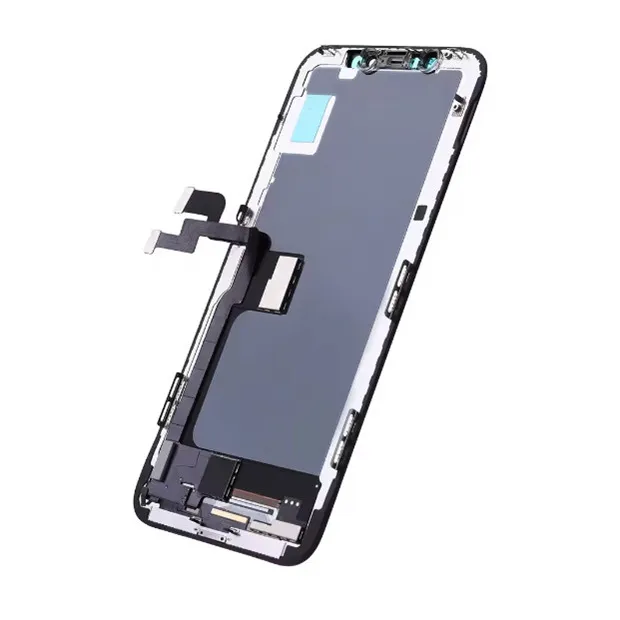

If you need to replace the screen of your iPhone or are interested in other mobile phone accessories, we offer the Mobile Phone Accessories Genuine LCD Display Touch Screen For IPhone 11 11Pro 11Promax. And for those looking for a more advanced model, our Refurbished Mobile Iphone 11 is a great choice.
Conclusion
Updating the apps on your second - hand iPhone 8 is a straightforward process that offers significant benefits in terms of performance, functionality, and security. By following the steps outlined in this guide, you can ensure that your apps are always up - to - date.
If you are interested in purchasing a second - hand iPhone 8 or any of our other products, we encourage you to reach out for a procurement discussion. We are committed to providing high - quality devices and excellent customer service.
References
- Apple Support: "Update apps on your iPhone, iPad, or iPod touch".
- Various app developer websites for specific update details.